How you arrange the side bar of your Blog reveals a lot about serious you are about connecting with people and making sharing your blog with others.
And no more so than if your blog has a commercial flavour where the life-blood of the exercise is to reach as wide an audience (and potential customers) as possible.
Here are a few tips to help you spread the word.
Place your rss subscribe link and email subscribe links at the very top of your side bar. If they're buried beneath other side panel 'widgets', the chances of them getting seen are pretty slim. It makes sense to make them as visible as possible.
My 'model' for a commercial blogs side panel is this:
RSS / Email and Twitter subscribe links first.
- i like to add a little please comment logo here also -
Your latest offer
Your twitter feed - last 5 comments is plenty
Blog archive
About you.
….anything else.
Even if you're using a standard blogger template, there are still things you can do to make it look a little more unique and business like.
Customise the header with an image - your company logo for example.
Customise the fonts, colours of headings and links etc.
For those comfortable with html and css, consider going into your Blogger template and making it wider than it is at present or add a custom background.
Now that your blog is ready for customers, the next thing you need to do is get both your content 'out there' and let potential customers know your blog exists.
Use social media sites like Digg and Stumbleupon to share your content. To attract readers, publicise your latest posts on Twitter or weave them into your genuine comments on other blogs and forums.
You've got em' - now how to keep em'?
Gaining a new following is all well and good but how exactly are you going to keep them coming back for more?
You've made it easy for them to keep up to date whenever you post something new - via RSS or email alerts - even Twitter is automatically tweeting new posts.
In a word - Content.
Gimmicks are short lived - it's content that will keep people coming back for more. So it may take you a while to discover exactly what sort of content and what style of writing most appeals to your readers.
Vary the styles a bit until you find a format that works for you, but also feels comfortable to write. If you enjoy it, then you're more likely to make a success of it.
A general rule of thumb is shorter posts with links to 'read more', which Blogger now supports, rather than long posts but it really depends on your audience. If they're looking for a really in-depth analysis, then a longer piece might convey that it is more in depth.
Cheers and good luck! - Jonathan.
Jonathan is technical partner for Fabulous Photo Gifts - online personalised photo gifts and presents. When he's not busy updating the website, he likes to blog useful seo tips for other small businesses.
A little flavour of what's in store...
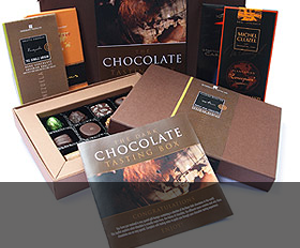
Gifts & Giveaways
Fine chocolate offers and vouchers....latest offer

Blogging tutorials
Easy tips to make your blog, twitter or tumblr accounts look good....see example

Social networking tips
Published articles by me on networking and social tools....see example

Art & Photography
Licenced images by Mandy Collins....read more
Showing posts with label blogger. Show all posts
Showing posts with label blogger. Show all posts
Wednesday, October 28, 2009


Thursday, January 29, 2009
Creating a Google Sitemap for Blogger Blogs - How to.
Google Sitemap for Blogger - how to create one.
For a long time now, I've been looking for a way to create a Sitemap for the Fabulous Photo Gifts Blogger blog to submit to Google's Sitemaps program. The idea being that doing so will increase Google's awareness of my posts, and therefore hopefully return them in search results a bit more often and higher up the listings.
This of course would lead to more visitors. Well we can dream can't we?
So when I finally stumbled across the method, I - A) kicked myself that I hadn't spotted it sooner... and B) decided to put digit to keyboard and share my findings before any more of you loose anymore sleep.
So, here's how I added a Google Sitemap to my Blogger Blog.
Firstly, you need to get a Google Account. It's completely free and easy to set up. Once you've done that, then you need to go to Webmaster Tools and click on 'add a site'.
Add your site (blog URL) and then you'll need to verify it - verify that you 'own' the blog or website in question, and that you have the means (and therefore the permission) to submit it in the first place.
You can usually do this by adding a metatag or by uploading a html file to your top level www directory folder. OK if you have a full website with ftp (File Transfer Protocol) access, but for most blogs, you won't so you'll need to select 'add metatag'.
Copy the metatag Google gives you, then go back to your Blogger Blog (I find it useful to have two windows open so you don't loose where you got up to), open the layout and expand the widgets (tick box) and save a back up (in case it all goes horribly wrong).
Then in-between the other metatags e.g (meta = title) your title (/meta) (these should be fairly near the top of your layout code, paste the metatag you copied from Google.
Check to see you haven't missed any closing brackets - I'm terrible for highlighting, copying and pasting only to discover I missed the first character -- and then save layout.
Check to see your Blog still appears OK and if so, you've successfully added the new 'tag'.
Now go back to the Google Webmaster Tools and click on 'verify'. Google will check your URL and see that the verification method has been carried out.
This can take a while so you can exit and check back later by logging into your Google Account, Webmaster Tools, Sitemaps and seeing if its verified.
Creating the Sitemap URL itself:
Now to create the URL itself that you're going to submit to Google as your Blogger Blogs sitemap url, you're going to need this URL:
http://my-blog-name-here.blogspot.com/feeds/posts/default?orderby=updated
What you will actually enter is: feeds/posts/default?orderby=updated
as Google prefills the first bit - the blog name - from the information you've entered when starting the initial submission.
I hope that helps you - it certainly did me. I'd got some crazy idea in my head that i'd got to create some very complicated URL to submit as the sitemap but in the end, Blogger already does that for you.
So everytime you post a new blog, your sitemap should update itself ready for Google to re-crawl. Hopefully you'll see an improvement in your search result positioning - it's early days yet of course but we watch the outcome with interest.
I'd love to know how you get on - do leave some feedback - any problems you experience implementing the above etc and I'll help if I can or if you have a success story or find the method slightly different for your blog.
Jonathan - Fabulous Photo Gifts.
For a long time now, I've been looking for a way to create a Sitemap for the Fabulous Photo Gifts Blogger blog to submit to Google's Sitemaps program. The idea being that doing so will increase Google's awareness of my posts, and therefore hopefully return them in search results a bit more often and higher up the listings.
This of course would lead to more visitors. Well we can dream can't we?
So when I finally stumbled across the method, I - A) kicked myself that I hadn't spotted it sooner... and B) decided to put digit to keyboard and share my findings before any more of you loose anymore sleep.
So, here's how I added a Google Sitemap to my Blogger Blog.
Firstly, you need to get a Google Account. It's completely free and easy to set up. Once you've done that, then you need to go to Webmaster Tools and click on 'add a site'.
Add your site (blog URL) and then you'll need to verify it - verify that you 'own' the blog or website in question, and that you have the means (and therefore the permission) to submit it in the first place.
You can usually do this by adding a metatag or by uploading a html file to your top level www directory folder. OK if you have a full website with ftp (File Transfer Protocol) access, but for most blogs, you won't so you'll need to select 'add metatag'.
Copy the metatag Google gives you, then go back to your Blogger Blog (I find it useful to have two windows open so you don't loose where you got up to), open the layout and expand the widgets (tick box) and save a back up (in case it all goes horribly wrong).
Then in-between the other metatags e.g (meta = title) your title (/meta) (these should be fairly near the top of your layout code, paste the metatag you copied from Google.
Check to see you haven't missed any closing brackets - I'm terrible for highlighting, copying and pasting only to discover I missed the first character -- and then save layout.
Check to see your Blog still appears OK and if so, you've successfully added the new 'tag'.
Now go back to the Google Webmaster Tools and click on 'verify'. Google will check your URL and see that the verification method has been carried out.
This can take a while so you can exit and check back later by logging into your Google Account, Webmaster Tools, Sitemaps and seeing if its verified.
Creating the Sitemap URL itself:
Now to create the URL itself that you're going to submit to Google as your Blogger Blogs sitemap url, you're going to need this URL:
http://my-blog-name-here.blogspot.com/feeds/posts/default?orderby=updated
What you will actually enter is: feeds/posts/default?orderby=updated
as Google prefills the first bit - the blog name - from the information you've entered when starting the initial submission.
I hope that helps you - it certainly did me. I'd got some crazy idea in my head that i'd got to create some very complicated URL to submit as the sitemap but in the end, Blogger already does that for you.
So everytime you post a new blog, your sitemap should update itself ready for Google to re-crawl. Hopefully you'll see an improvement in your search result positioning - it's early days yet of course but we watch the outcome with interest.
I'd love to know how you get on - do leave some feedback - any problems you experience implementing the above etc and I'll help if I can or if you have a success story or find the method slightly different for your blog.
Jonathan - Fabulous Photo Gifts.
Thursday, October 04, 2007
Adding a Tag or Label Cloud to Blogger - Important update
Re: earlier SEO post about adding a tag or label cloud to your blog:
Click here to read the previous article on tag clouds for Blogger
I've just discovered something rather interesting.
If you've used the code to add a tag cloud to your Blogger template, if you ever decide to change your Blog template, beware!
You'll have to go into your template and re-insert steps 1 and 2 of the code for adding the tag cloud. Step 3 remains in place but obviously nothing is generated.
Just thought I'd forwarn you all. Have fun and if you haven't tried it yet then why not? A tag or label cloud is a great way to help visitors find the article they want quickly and easily.
And the code allows you to finetune so you can select, for instance, how many repeats of a tag or label before that tag shows up in the cloud. Neat eh?
Click here to read the previous article on tag clouds for Blogger
I've just discovered something rather interesting.
If you've used the code to add a tag cloud to your Blogger template, if you ever decide to change your Blog template, beware!
You'll have to go into your template and re-insert steps 1 and 2 of the code for adding the tag cloud. Step 3 remains in place but obviously nothing is generated.
Just thought I'd forwarn you all. Have fun and if you haven't tried it yet then why not? A tag or label cloud is a great way to help visitors find the article they want quickly and easily.
And the code allows you to finetune so you can select, for instance, how many repeats of a tag or label before that tag shows up in the cloud. Neat eh?
Wednesday, July 18, 2007
If only visitors could find articles quickly - SEO tip
How often have you visited a Blog and left because there were so many articles, you couldn't find the one you had intended to read?
This can be especially frustrating if you click a link from a search engine that just takes you to the blog (in general) rather than to a specific story.
There are several reasons for this. Either the Search Engine has just returned the result because it thought it matched, but its only matched to the blog url and not the specific story url or its picked up from a technorati thread etc, but again the link wasn't to a specific story.
When digging or delicious adding, its important to be specific - the same when linking back to past articles - be specific.
Not sure what URL to limk to? Easy - just click on the story you want to link to and copy and paste the URL from the address bar.
However, you haven't previously made specific links so all is lost right? Wrong! There's still much you can do. Have you used tags on your posts? If you have then you can add a really neat widget called a Tag Cloud.
Tag Clouds display your post tags with the more popular a tag, the bigger it appears. So not only is it an instant identifier of your most popular tags (articles), it can also be used to quickly identify a topic and go straight to all the articles that include that topic (or tag).
At Fabulous Photo Gifts, we've been working on a way to add a Tag Cloud of our own but ended up using the excellent bit of code for adding a Tag Cloud to Blogger here:
http://phydeaux3.blogspot.com/2006/09/code-for-beta-blogger-label-cloud.html
Many thanks to Phydeaux3 for sharing that with the rest of us.
Like this SEO tip? Jump to the last SEO article on this blog - click here
This can be especially frustrating if you click a link from a search engine that just takes you to the blog (in general) rather than to a specific story.
There are several reasons for this. Either the Search Engine has just returned the result because it thought it matched, but its only matched to the blog url and not the specific story url or its picked up from a technorati thread etc, but again the link wasn't to a specific story.
When digging or delicious adding, its important to be specific - the same when linking back to past articles - be specific.
Not sure what URL to limk to? Easy - just click on the story you want to link to and copy and paste the URL from the address bar.
However, you haven't previously made specific links so all is lost right? Wrong! There's still much you can do. Have you used tags on your posts? If you have then you can add a really neat widget called a Tag Cloud.
Tag Clouds display your post tags with the more popular a tag, the bigger it appears. So not only is it an instant identifier of your most popular tags (articles), it can also be used to quickly identify a topic and go straight to all the articles that include that topic (or tag).
At Fabulous Photo Gifts, we've been working on a way to add a Tag Cloud of our own but ended up using the excellent bit of code for adding a Tag Cloud to Blogger here:
http://phydeaux3.blogspot.com/2006/09/code-for-beta-blogger-label-cloud.html
Many thanks to Phydeaux3 for sharing that with the rest of us.
Like this SEO tip? Jump to the last SEO article on this blog - click here
Subscribe to:
Posts (Atom)