RSS the new email – He might be right!
Through my email inbox came an article entitled “RSS – The New Email” and the author raised some very interesting points that I thought were worth highlighting.
For instance, you can embed audio and video in an RSS Feed. Might not sound that fantastic but as more and more companies explore RSS, they've come to realise that trying to embed video into a normal email is a no-starter.
100% Spam free – yes you heard me right. Because RSS is content is subscribed to anonymously, there's no address to send the spam too!
100% deliver-ability – Gotcha! Any email marketer will tell you their biggest problem is delivery. Its estimated that for any email campaign, expect anywhere between 10% and 40% to be undelivered.
The same goes for smaller emails you send on a regular basis as more and more carriers look at ways of fighting spam emails, with higher levels of 'legitimate' emails going into peoples junk folders.
So what's holding this mass exodus to RSS up? Well, at present, according to sources, less than 20% of Internet users read content with the aid of an RSS reader.
And the problem gets worse. Even amongst frequent web browsers, when asked, many did not know the meaning of the little orange symbol.
When you put these two figures together, you end up with a very slow sea of change, but I reckon that's only a matter of time as more and more of us catch onto the benefits of using RSS. If ever proof were needed, you only need look at the recent upgrade of Explorer to version 7, which now comes with a built in RSS reader/subscriber in the 'favourites' menu.
The stage is set and the time has come for RSS Feeds to enter center right. The death of email – debatable but certainly now is the time to start exploring making RSS work for you personally and your business.
Have you subscribed to our RSS Feed? No? Don't worry, just click here and add our feed URL to your reader or Explorer Version 7 Feed Favourites.
Like to know more about RSS Feeds? Click here to find out more and the answers to some common RSS questions from beginners.
A little flavour of what's in store...
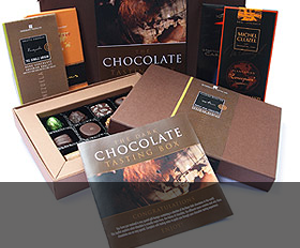
Gifts & Giveaways
Fine chocolate offers and vouchers....latest offer

Blogging tutorials
Easy tips to make your blog, twitter or tumblr accounts look good....see example

Social networking tips
Published articles by me on networking and social tools....see example

Art & Photography
Licenced images by Mandy Collins....read more
Showing posts with label rss feed. Show all posts
Showing posts with label rss feed. Show all posts
Monday, January 28, 2008


Thursday, January 10, 2008
Part 1 - Improve your RSS Feeds ITEMS TAG - SEO Tip
Hi SEO Fans - Apologies I've not written anything seo orientated for a while but what I'm about to show you below (if you're not doing it already of course) will improve your RSS Validation when putting new 'items' into your feed.
Below I've laid out a typical 'Item' as it should read for maximum validation. Don't worry about re-visiting old rss alerts - let them 'expire' off of your rss feed naturally as they are replaced by newer 'items' (I try to keep to about the last 10 to 15 myself).
Here's how the code for each 'item' should look in your text editor:
<item>
<title>Home Photography Scanning Tips - Numbers 3 and 4</title>
<link>http://purple13.blogspot.com/2008/01/home-scanning-tips-tip-3-and-4.html</link>
<description>Series of home scanning tips to help you improve your scanned photographs Tip 3 and 4</description>
<guid isPermaLink="true">http://purple13.blogspot.com/2008/01/home-scanning-tips-tip-3-and-4.html</guid>
<author>jonathan@purple13.co.uk (Jonathan Crouch - Purple 13 Web Design)</author>
<pubDate>Thu, 10 Jan 2008 09:27:00 GMT</pubDate>
</item>
You'll need to replace the url with your own of course in 'link' and 'guid' lines. These are usually the same url, its just the 'guid' notifys readers that this is the unique reference for this post so that repeats don't happen.
It's also good practise to put your actual name (in brackets) after your email address.
The only validation problem you might come across is the dates - you have to be very precise with the layout here - the month is abreviated to the first three letters and capped (upper case first letter).
I'll blog more tomorrow about improving your heading coding and also mention a great validation service to help you get it right.
With the increasing use of RSS Feeds as part of your overall marketing strategy, it's important to get it right.
Jonathan - Fabulous Photo Gifts Webmaster
Below I've laid out a typical 'Item' as it should read for maximum validation. Don't worry about re-visiting old rss alerts - let them 'expire' off of your rss feed naturally as they are replaced by newer 'items' (I try to keep to about the last 10 to 15 myself).
Here's how the code for each 'item' should look in your text editor:
<item>
<title>Home Photography Scanning Tips - Numbers 3 and 4</title>
<link>http://purple13.blogspot.com/2008/01/home-scanning-tips-tip-3-and-4.html</link>
<description>Series of home scanning tips to help you improve your scanned photographs Tip 3 and 4</description>
<guid isPermaLink="true">http://purple13.blogspot.com/2008/01/home-scanning-tips-tip-3-and-4.html</guid>
<author>jonathan@purple13.co.uk (Jonathan Crouch - Purple 13 Web Design)</author>
<pubDate>Thu, 10 Jan 2008 09:27:00 GMT</pubDate>
</item>
You'll need to replace the url with your own of course in 'link' and 'guid' lines. These are usually the same url, its just the 'guid' notifys readers that this is the unique reference for this post so that repeats don't happen.
It's also good practise to put your actual name (in brackets) after your email address.
The only validation problem you might come across is the dates - you have to be very precise with the layout here - the month is abreviated to the first three letters and capped (upper case first letter).
I'll blog more tomorrow about improving your heading coding and also mention a great validation service to help you get it right.
With the increasing use of RSS Feeds as part of your overall marketing strategy, it's important to get it right.
Jonathan - Fabulous Photo Gifts Webmaster
Friday, June 08, 2007
Are you using auto discovery for your RSS Feed?
Auto Discovery? What's that?
Well until quite recently I thought I'd done everything right by creating an RSS Feed etc, but I was wrong.
You see, there's a little snippet of code that allows browsers like Mozilla and Safari to auto detect when your website has an RSS Feed and display the little orange icon in the url address bar.
This makes it extremely easy for visitors to add your RSS Feed to their reader.
Making it easier should equate to more traffic for your feed...
So 'how can I get this wondrous feature?' I hear you ask. I've pasted the code below for our own website - you'll just need to amend the url for your RSS Feed and the feed description.
Alternatively, you may wish to use an online service like feedforall to generate the code for you - just type in your title and url and hey presto, some nice code to copy and paste.
The code needs to go in between your <head> </head> tags.
Here's the bit of code i used:
<link rel="alternate" type="application/rss+xml" title="Fabulous Photo Gifts - News, Features, Gossip, SEO articles" href="http://www.purple13.co.uk/rss.xml" </a>
Click here to add the Fabulous Photo Gifts RSS Feed to your reader.
Well until quite recently I thought I'd done everything right by creating an RSS Feed etc, but I was wrong.
You see, there's a little snippet of code that allows browsers like Mozilla and Safari to auto detect when your website has an RSS Feed and display the little orange icon in the url address bar.
This makes it extremely easy for visitors to add your RSS Feed to their reader.
Making it easier should equate to more traffic for your feed...
So 'how can I get this wondrous feature?' I hear you ask. I've pasted the code below for our own website - you'll just need to amend the url for your RSS Feed and the feed description.
Alternatively, you may wish to use an online service like feedforall to generate the code for you - just type in your title and url and hey presto, some nice code to copy and paste.
The code needs to go in between your <head> </head> tags.
Here's the bit of code i used:
<link rel="alternate" type="application/rss+xml" title="Fabulous Photo Gifts - News, Features, Gossip, SEO articles" href="http://www.purple13.co.uk/rss.xml" </a>
Click here to add the Fabulous Photo Gifts RSS Feed to your reader.
Friday, February 23, 2007
Purple 13 / Fabulous Photo Gifts RSS feed url change
Hi.
The rather excellent RSS feed of Purple 13 and Fabulous Photo Gifts is moving URL.
As of 23rd February 2007, the new url is: http://www.purple13.co.uk/rss.xml
Either replace the existing url in your news reader with this one or visit www.purple13.co.uk (or www.fabulousphotogifts.co.uk) and click on the RSS / XMl symbols on the Home Pages to add.
See you there!
Jonathan.
The rather excellent RSS feed of Purple 13 and Fabulous Photo Gifts is moving URL.
As of 23rd February 2007, the new url is: http://www.purple13.co.uk/rss.xml
Either replace the existing url in your news reader with this one or visit www.purple13.co.uk (or www.fabulousphotogifts.co.uk) and click on the RSS / XMl symbols on the Home Pages to add.
See you there!
Jonathan.
Subscribe to:
Posts (Atom)